CapCut Secret Features

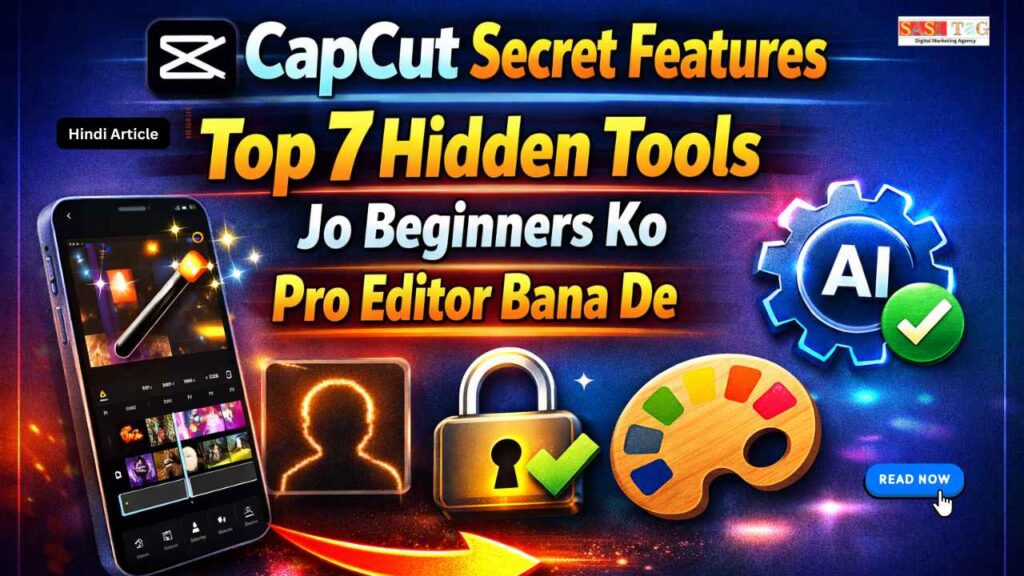
CapCut Secret Features: Top 7 Hidden Tools Jo Beginners Ko Pro Editor Bana De (In Hindi)

#CapCut Secret Features: Top 7 Hidden Tools Jo Beginners Ko Pro Editor Bana De (In Hindi)

CapCut Secret Features

क्या आपने कभी सोचा है कि कुछ Creators की Videos इतनी Smooth, Cinematic और Professional क्यों दिखती हैं, जबकि वे भी शुरुआत में Beginners ही थे? फर्क अक्सर महंगे Software का नहीं, बल्कि Smart Tools के सही Use का होता है!

Table of Contents

बहुत से Users सिर्फ Basic Editing तक ही सीमित रहते हैं और App के अंदर छिपे Powerful Tools को Explore नहीं करते सच यह है कि CapCut के अंदर कई Secret Features मौजूद हैं जो Editing को Next Level पर ले जा सकते हैं!

इस Detailed Guide में आप जानेंगे Top 7 Hidden Tools जो Beginners को Pro Editor जैसा Result देने में मदद करते हैं Step By Step आसान Explanation के साथ!

  • All
  • Admin Panel
  • for User
  • Gateway

#CapCut Secret Features Me Hidden Tools क्यूँ Important हैं?

CapCut में Hidden Tools इसलिए Important हैं क्योंकि ये Basic Editing से आगे बढ़कर आपकी Video को Professional Look देता हैं जब आप सिर्फ Cut, Trim और Music Add करने तक सीमित रहते हैं, तो Video Simple लगता है लेकिन Keyframe, Mask Tool, Curve Speed और Adjustment Layer जैसे Tools Use करने से Video में Smooth Flow, Cinematic Feel और Creative Control आता है!

Hidden Tools Time Save करते हैं, Editing Quality Improve करता हैं और Viewer Engagement बढ़ाते हैं अगर आप Beginner हैं और Pro Result चाहते हैं, तो इन Advanced Features को सीखना और Practice करना बहुत जरूरी है!

#CapCut Secret Features: Top 7 Hidden Tools Jo Beginners Ko Pro Editor Bana De

#1. Keyframe Animation

Keyframe Animation Hidden Feature आपको Clip के अंदर Smooth Movement Create करने की सुविधा देता है आप Zoom In, Zoom Out और Position Change Control कर सकते हैं!

यह Static Video को Dynamic बना देता है और Beginner Editor को Professional Cinematic Look Achieve करने में मदद करता है!

#2. Curve Speed Control

Curve Speed Control Normal Speed Tool से ज्यादा Advanced होता है इससे आप Custom Speed Graph बना सकते हैं, जिसमें Slow और Fast Motion Smooth तरीके से Adjust होता है Travel Vlog और Dramatic Scene में यह Feature Video को Cinematic Feel देता है!

#3. Background Removal

Background Removal AI Based Feature है जो बिना Green Screen के Subject Detect करके Background Remove कर देता है Talking Head Video और Product Review के लिए यह Tool बहुत Useful है Clean Background Replace करने से Video Professional और Attractive दिखाई देता है!

#4. Mask Tool

Mask Tool Creative Transition और Reveal Effect बनाने में मदद करता है Overlay Add करके Shape Select करें और Feather Adjust करें यह Hidden Tool Unique Scene Change Create करता है, जिससे Beginner Editing भी Professional और Smooth लगती है!

#5. Auto Captions With Custom Style

Auto Captions Feature Voice को Automatically Text में Convert करता है आप Font Style, Color और Animation Customize कर सकते हैं Subtitles Add करने से Viewer Engagement Increase होती है और Video Professional और Social Media Friendly बन जाता है!

Editing samajhne mein problem ho rahi hai?
Hum aapko step-by-step CapCut setup aur pro editing tricks batayenge.

📩 Abhi WhatsApp karein: 8757554176
Aur apni editing journey confidently start karein!

#6. Adjustment Layer

Adjustment Layer Powerful Hidden Tool है जो Multiple Clips पर Same Color Effect Apply करता है इससे Time Save होता है और Video का Overall Look Consistent रहता है Professional Color Grading के लिए यह Feature Beginner Editors के लिए बहुत Helpful है!

#7. Audio Keyframe Control

Audio Keyframe Control से आप Music Volume को Gradually Increase या Decrease कर सकते हैं Dialogue Start होने पर Background Sound Low करना आसान हो जाता है यह Small Detail Video को Clean, Balanced और Professional Sound Experience देता है!

#CapCut Secret Features: Top 7 Hidden Tools Jo Beginners Ko Pro Editor Bana De

#1. Basic Editing से Start करे!

सबसे पहले Clips Import करें और Timeline में Proper Sequence में Arrange करें Unwanted Parts को Trim और Split Tool से Remove करें Clean Base Edit तैयार करना जरूरी है, क्योंकि Hidden Tools का Effect तभी Professional लगेगा जब Basic Structure Clear और Organized हो!

#2. Keyframe Animation Apply करे!

Important Moments पर Keyframe Add करें और Smooth Zoom In या Zoom Out Effect Create करें Starting और Ending Position Adjust करके Natural Movement दें यह Step Static Shot को Dynamic बनाता है और Video में Cinematic Feel Add करता है!

#3. Curve Speed Control Use करे!

Action Scene या Emotional Moment में Curve Speed Tool Apply करें Custom Speed Graph बनाकर Slow To Fast Motion Transition Create करें Smooth Speed Variation Video को Dramatic Impact देता है और Viewer Attention Hold करने में मदद करता है!

#4. Mask Tool से Creative Transition बनाये!

Overlay Add करें और Mask Tool Select करके Shape Choose करें Feather Option Adjust करके Smooth Reveal Effect Create करें यह Step Simple Cut की जगह Unique Scene Change देता है, जिससे Video Professional और Visually Engaging बनता है!

#5. Adjustment Layer और Audio Keyframe Add करे!

Adjustment Layer Add करके Multiple Clips पर Same Color Tone Apply करें Consistent Look Maintain करें इसके बाद Audio Keyframe Use करके Music Volume Gradually Adjust करें Dialogue Clear रखें और Background Sound Smooth Fade करें, ताकि Final Video Balanced और Professional लगे!

#Common Mistakes Avoid करे!

#1. हर जगह Heavy Effects लगाना!

हर Clip पर Over Effects और Fancy Transitions Use करना Video को Professional नहीं बनाता। इससे Video Over Edited और Distracting लगता है Simple और Clean Editing ज्यादा Powerful और Cinematic होता है!

#2. Speed Control का गलत Use

Curve Speed या Slow Motion को बिना Planning के Apply करना Scene का Impact खराब कर सकता है Speed Variation हमेशा Music Beat और Scene Emotion के अनुसार Use करें।

#3. Audio Balance Ignore करना

Background Music ज्यादा Loud रखना या Dialogue Clear न रखना एक Common Mistake है Audio Keyframe Use करके Volume Smoothly Adjust करें ताकि Sound Balanced और Professional लगे!

#4. Color Grading Overuse करना!

Adjustment Layer या Filters का Overuse Video को Artificial बना सकता है Natural Tone Maintain करें और Theme के अनुसार Light Color Correction करें!

#5. Timeline को Unorganized रखना!

Clips, Audio और Effects को Properly Arrange न करना Editing Process को Confusing बना देता है! पहले Clear Structure बनाएं, फिर Hidden Tools Apply करें!

#Conclusion

CapCut के Hidden Tools Beginners के लिए Game Changer साबित हो सकते हैं Keyframe Animation, Curve Speed Control, Mask Tool और Adjustment Layer जैसे Features Video को Professional Cinematic Look देता हैं! 

सही Planning, Clean Editing और Balanced Audio के साथ ये Tools आपकी Content Quality को Next Level पर ले जाता हैं Regular Practice करें, Creative Experiments करें और हर Project में Improvement लाने की कोशिश करें!

  • All Posts
  • Earning Tips
  • Panel Guide
Load More

End of Content.

Leave a Comment

Your email address will not be published. Required fields are marked *

Shopping Cart
Instagram
Phone
WhatsApp
WhatsApp
Phone
Instagram
Scroll to Top