Canva Presentation

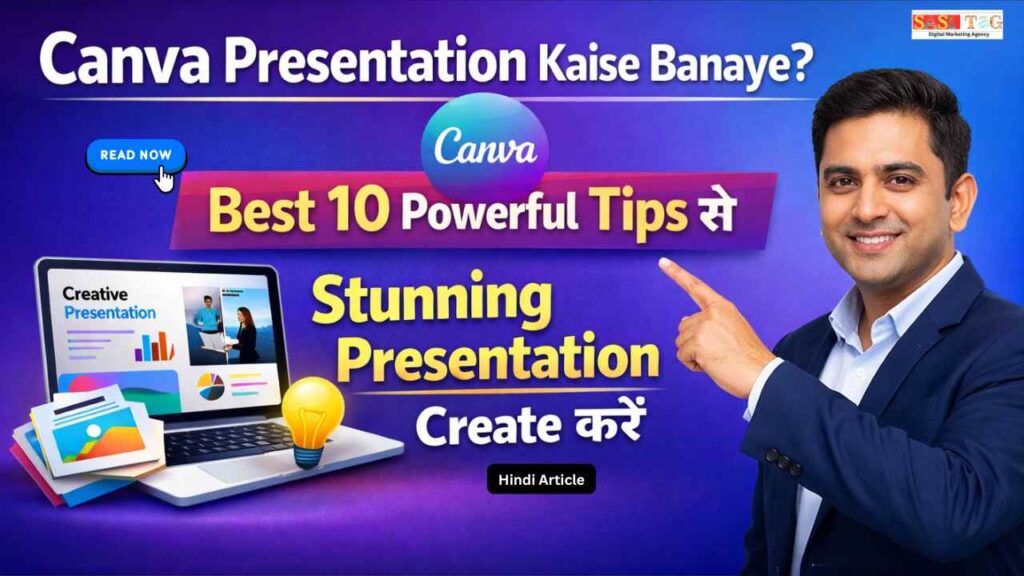
Canva Presentation Kaise Banaye: Best 10 Powerful Tips से Stunning Presentation Create करें 

#Canva Presentation Kaise Banaye: Best 10 Powerful Tips से Stunning Presentation Create करें

Canva Presentation

क्या आपने कभी Presentation बनाते समय सोचा है कि मेरी Slides इतनी Simple क्यों दिख रहा हैं? Class हो, Office Meeting हो या Client Pitch अगर Presentation Attractive नहीं है, तो Audience जल्दी Bore हो जाता है!

Table of Contents

Problem यह नहीं है कि आपके पास Content कम है असली Problem यह है कि Presentation Design Powerful नहीं होता Traditional Tools Complex लगते हैं और Beginners को समझ नहीं आता!

Good News यह है कि Canva Presentation की मदद से आप बिना किसी Technical Skill के Stunning Slides Create कर सकते हैं सही Tips Follow करके आप Beginner से Confident Presenter बन सकते हैं!

  • All
  • Admin Panel
  • for User
  • Gateway

#Canva Presentation क्या है?

Canva Presentation एक Online Design Tool है जिसकी मदद से आप आसानी से Professional Slides Create कर सकते हैं इसमें Ready-Made Templates, Fonts, Images और Graphics पहले से Available होता हैं जिससे User को सिर्फ Drag And Drop करके Content Add करना होता है!

यह Tool Students, Teachers, Business Owners और Content Creators के लिए बहुत Helpful है क्योंकि इसमें Technical Knowledge की जरूरत नहीं होती Canva Presentation से आप Attractive, Clean और Visually Engaging Slides कुछ ही Minutes में बना सकते हैं!

#Canva Presentation Design के लिए Perfect क्यूँ है?

Canva Presentation Design के लिए Perfect इसलिए है क्योंकि यह Beginners और Professionals दोनों के लिए Easy और Powerful Tool है इसमें Ready-Made Templates, Drag And Drop Feature और Built-In Graphics Available होते हैं, जिससे Design Process Simple हो जाता है!

आपको Technical Knowledge या Complex Software सीखने की जरूरत नहीं होता Canva में Cloud-Based Available है इसलिए आप कहीं से भी Access कर सकते हैं Clean Layout, Smart Alignment Tools और Easy Editing Options की वजह से Presentation Professional और Visually Attractive बनती है!

#Canva Presentation कैसे बनाएं! (In Step)

#Step 1: Canva Open करें And Login करें!

सबसे पहले Canva Website या App Open करें और Email या Google से Login करें New Users Free Account Create करके आसानी से शुरुआत कर सकते हैं!

#Step 2: Presentation Format Select करें!

Search Bar में Presentation Type करें और  Format Choose करें यह Format Projector, Webinar और Online Meeting के लिए Perfect माना जाता है!

#Step 3: Template Choose करें!

Topic के अनुसार Clean और Professional Template Select करें Template Structure Ready मिलता है, जिससे Design Balanced और Attractive दिखता है!

#Step 4: Text Replace करें!

Template के Default Text को अपने Content से Replace करें Long Paragraph Avoid करें और Short Bullet Points Use करें!

#Step 5: Images और Icons Add करें!

High-Quality Images और Relevant Icons Add करें Canva Library से Copyright Safe Graphics Use करें!

#Step 6: Colors और Fonts Customize करें!

Brand Colors Set करें और Maximum Two Fonts Use करेंConsistency Presentation को Professional Look देती है!

#Step 7: Slides Review करें और Download करें!

All Slides Check करें, Alignment Fix करें और Final Presentation PDF या PPT Format में Download करें!

#Canva Presentation 10 Best Powerful Tips To Create Stunning Design

Tip 1: Keep Your Slides Simple And Focused

Presentation का Goal Audience को Clear Message देना होता है, न कि उन्हें Overwhelm करना हर Slide में एक Main Idea रखें और Extra Text Avoid करें Clean Background, Limited Elements और Proper Spacing Use करें Simple Slides ज्यादा Professional दिखता हैं और इससे Audience का Attention लंबे समय तक बनाए रहता हैं!

Tip 2: Use High-Quality Images Only

Blurry या Low-Resolution Images आपकी Presentation की Quality कम कर देता हैं Canva Library में Available High-Quality Stock Images Use करें Relevant Visuals Message को Strong बनाते हैं और Audience को Concept जल्दी समझ आता है Strong Visual Impact आपकी Slides को Stunning और Memorable बनाता है!

Tip 3: Stick To A Consistent Color Palette

Random Colors Use करने से Slides Unprofessional लगता हैं 2–3 Brand Colors Fix करें और पूरी Presentation में वही Shades Repeat करें Consistent Color Palette Visual Harmony Create करता है Canva का Color Palette Feature Use करके Same Colors Apply करना आसान हो जाता है!

Tip 4: Use Clear And Bold Typography

Readable Fonts Choose करें और Heading को Bold रखें Maximum Two Fonts Use करें  One For Heading, One For Body Text Fancy Fonts Avoid करें क्योंकि वे Readability कम कर सकते हैं Proper Typography आपकी Slides को Clean, Modern और Professional Look देता है!

Tip 5: Add Icons And Graphics Smartly

Relevant Icons और Simple Graphics Use करने से Slides More Engaging बनता हैं Canva की Built-In Icon Library से Minimal Design Elements Add करें Over Decoration Avoid करें Smart Graphics Message को Visually Explain करता हैं और Audience का Interest Maintain रखता हैं!

Tip 6: Maintain Proper Visual Hierarchy

Visual Hierarchy का मतलब है कि Audience पहले क्या देखे Heading सबसे Prominent हो, फिर Supporting Text और Last में Key Points Canva Alignment Guides Use करके Elements को Properly Arrange करें! Structured Layout Presentation को Professional और Easy-To-Understand बनाता है!

Tip 7: Use Short Bullet Points Instead Of Paragraphs

Long Paragraph Slides पर Avoid करें Short Bullet Points Use करें ताकि Audience जल्दी Read कर सके Presentation Speak करने के लिए होता है Read करने के लिए नहीं Bullet Points Content को Organized और Clear बनाते हैं!

Tip 8: Add Subtle Animations Carefully

Canva में Simple Animations Available हैं जो Slides को Dynamic बनाता हैं लेकिन Over Animation Avoid करें Smooth And Minimal Animation Presentation को Modern Feel देता है और Audience को Engagement Increase करता है!

Tip 9: Use Charts And Data Visualization

Numbers और Statistics को Plain Text में न दिखाएँ Canva Charts Feature Use करके Data को Visual Form में Present करें Graphs और Pie Charts Complex Information को Easy और Impactful तरीके से Explain करता हैं!

Tip 10: Always Review Before Presenting

Final Presentation Download करने से पहले सभी Slides Check करें Spelling Mistakes, Alignment Issues और Color Consistency Verify करें Preview Mode Use करके Flow देखें Proper Review आपकी Presentation को Polished और Confident Look देता है!

#Common Mistakes जो Beginners को Avoid करना चाहिए!

1: Too Much Text: Long Paragraph Slides को Cluttered बना देता हैं Short Bullet Points Use करें!

2: Too Many Fonts And Colors: Limited Fonts और 2–3 Brand Colors Maintain करें!

3: Low-Quality Images: Always High-Resolution Images Use करें!

4: Over Animation: Simple Transitions Better रहता हैं!

5: Poor Alignment: Proper Spacing और Alignment से Clean Look आता है!

#Benefits Of Using Canva Presentation

1: Beginner Friendly Interface: Canva का Drag And Drop System बहुत Easy है, इसलिए बिना Technical Knowledge के भी Professional Slides Create किए जा सकते हैं!

2: Ready-Made Templates: Thousands Of Presentation Templates Available हैं, जो Time Save करते हैं और Clean Layout Provide करते हैं!

3: Time Saving Tool: Pre-Designed Elements और Quick Editing Features की वजह से Slides Fast तैयार हो जाता हैं!

4: Built-In Graphics And Charts: Images, Icons और Data Charts Canva में ही Available हैं, जिससे Presentation More Engaging बनता है!

5: Easy Sharing And Download Options: Presentation को PDF, PPT Format में Download या Direct Link से Share किया जा सकता है!

#Conclusion

Canva Presentation Beginners के लिए एक Simple और Powerful Solution है, जो Professional Slides Create करना Easy बना देता है Ready Templates, Clean Design Tools और Easy Editing Features की मदद से आप Attractive और Impactful Presentation बना सकते हैं सही Strategy और Practice से आपकी Presentation Confident, Clear और Visually Stunning बन सकते है!

  • All Posts
  • Earning Tips
  • Panel Guide
Load More

End of Content.

Leave a Comment

Your email address will not be published. Required fields are marked *

Shopping Cart
Instagram
Phone
WhatsApp
WhatsApp
Phone
Instagram
Scroll to Top